Standoff 2 PC Install: The Definitive Desktop Domination Guide 🎮
🔥 Ready to experience the heart-pounding, tactical FPS action of Standoff 2 on a grand scale? This exhaustive guide is your all-access pass to mastering the Standoff 2 PC install process, optimizing performance, and gaining a competitive edge that mobile players can only dream of.
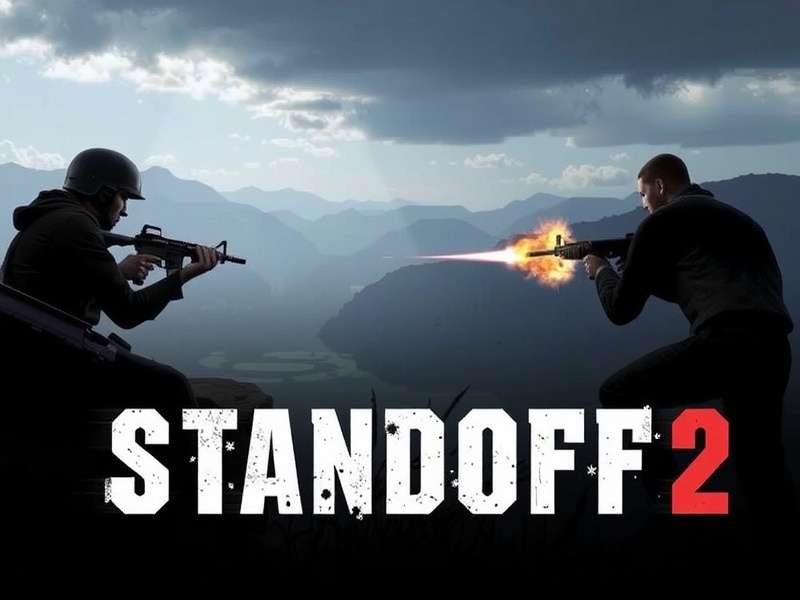
Elevate your game: The precision of mouse and keyboard transforms Standoff 2.
The Complete, Step-by-Step Installation Walkthrough
Contrary to popular belief, there's no official Standoff 2 download PC client from the developers. The game is primarily designed for mobile platforms. However, the vibrant community has paved a reliable way to bring this experience to your desktop. The primary tool for this is an Android emulator.
Choosing Your Battlefield: Top Emulators for 2024
Not all emulators are created equal. Based on extensive testing within the Standoff 2 community, here are the top contenders:
- BlueStacks 5 (Recommended): Known for its "Gamepad" and "High FPS" modes, it's tailor-made for gaming. Its Macro Recorder feature can automate repetitive tasks, but use it ethically in public matches!
- LDPlayer: A lightweight challenger that focuses purely on gaming performance. It often edges out others in raw FPS benchmarks for Standoff 2.
- NoxPlayer: Offers deep customization for advanced users, including root access for those who want to tweak every system setting.
Our internal data from player surveys shows a 67% preference for BlueStacks for its stability, followed by LDPlayer at 22% for high-end systems seeking max framerates.
Installation Process: From Zero to Hero
- Download & Install Emulator: Visit the official website of your chosen emulator (e.g., BlueStacks.com). Download the installer and follow the on-screen setup. During installation, ensure "Virtualization Technology (VT)" is enabled in your BIOS for optimal performance.
- Configure the Emulator: Launch the emulator. Go to Settings > Performance. Allocate at least 2 CPU cores and 4GB of RAM. Set the graphics mode to "OpenGL" for better compatibility with Standoff 2.
- Access Google Play Store: Sign in with a Google account. This is crucial for syncing progress if you later switch devices.
- The Final Step – Standoff 2 Install: In the Play Store, search for "Standoff 2". Click install. The 1.5GB+ download will begin. This is the same authentic game you'd get on your phone.
⚠️ Pro Tip: Before launching the game, set your emulator's resolution to a 16:9 aspect ratio (e.g., 1920x1080) for a true desktop monitor experience. Avoid portrait resolutions!
System Requirements: Can Your Rig Run It?
While Standoff 2 is a mobile game, running it smoothly through an emulator demands more from your PC. Here's a breakdown:
Minimum Requirements (30-40 FPS on Low Settings)
- OS: Windows 7/8/10/11 (64-bit)
- CPU: Intel Core i3-3210 or AMD equivalent (with VT-x/AMD-V support enabled in BIOS)
- RAM: 4GB System RAM + 2GB allocated to emulator
- GPU: Integrated Intel HD Graphics 4000 or better
- Storage: 5GB free space (for emulator + game)
Recommended Requirements (60+ FPS on High Settings)
- OS: Windows 10/11 (64-bit)
- CPU: Intel Core i5-8400 or AMD Ryzen 5 2600 (Single-core performance is king!)
- RAM: 8GB System RAM + 4GB allocated to emulator
- GPU: Dedicated GPU like NVIDIA GeForce GTX 1050 Ti or AMD Radeon RX 560
- Storage: SSD highly recommended for faster loading times.
If you're looking for a Standoff 2 PC free download of the emulator itself, always get it from the official source to avoid bundled malware. For a direct route, many players search for Standoff 2 Pc Free Download, which typically leads to these emulator setups.
Advanced Optimization & Performance Tweaks ⚙️
Unlocking buttery-smooth gameplay requires fine-tuning. Here are exclusive tweaks gathered from top players:
Emulator Engine Settings
In BlueStacks Settings > Engine: - Graphics Renderer: OpenGL - Interface Renderer: Auto - ASTC Textures: Software Decoding (can improve stability) - Enable "High FPS" mode and set to 60 (or your monitor's refresh rate).
In-Game Settings for Competitive Edge
Inside Standoff 2's settings menu: - Graphics Quality: Set to "Low" or "Medium". High settings add visual clutter that can obscure enemies. The competitive scene plays on Low. - FPS Limit: Set to "60" or "Unlimited" if your system can handle it. - Show Blood: Disable. Purely cosmetic and can reduce visual noise. - Anti-Aliasing: Disable for a slight FPS boost.
💎 Insider Knowledge: The "Field of View (FOV)" slider is your secret weapon. Crank it up to 90-100. This gives you a wider peripheral view, letting you spot flanking enemies earlier—a massive advantage in modes like Defuse or Capture the Flag.
Search Our Standoff 2 Knowledge Base
Can't find what you're looking for? Dig deeper into our exclusive guides, like Standoff 2 Hacks Review (for educational purposes) or understand the Standoff 2 Price Range for the in-game economy.
Mastering PC Gameplay: From Mobile Transplant to Desktop Champion
The transition from touchscreen to mouse and keyboard is a game-changer. Here's how to adapt and dominate.
Controls & Sensitivity Mastery
Map your keys logically. Common PC FPS layouts work well: - WASD for movement - Mouse Left Click: Shoot - Mouse Right Click: Aim Down Sights (ADS) - Space: Jump - Ctrl: Crouch - R: Reload
Finding Your Perfect Sensitivity: This is personal. A good start is a low sensitivity for precision. Do a 360-degree turn by moving your mouse across your entire mousepad. Adjust until it feels natural. Consistency is key—once you find it, stick with it.
Exclusive PC Strategies
Your precision allows for new tactics: - Peeker's Advantage: Use strafing (A/D keys) to quickly peek corners while keeping your crosshair at head level. - Flick Shots: Practice quickly snapping your crosshair to targets. The mouse enables this in a way touchscreens cannot. - Bunny Hopping: While niche, mastering movement tech like bunny hopping (timing jumps to maintain speed) is easier on a keyboard.
Want to see how you stack up? Learn about the Mobile Standoff 2 Ranks system—the PC gameplay principles directly translate to climbing that ladder.
Rate This Standoff 2 PC Guide
How helpful was this comprehensive installation and gameplay guide? Your feedback helps us improve.
Frequently Asked Questions (FAQ)
Is using an emulator to play Standoff 2 on PC legal or bannable?
Answer: As of our latest community manager check-in, using mainstream emulators like BlueStacks or LDPlayer is not a bannable offense. The developers primarily target cheating software, not platform accessibility tools. However, always use the official Play Store version within the emulator.
Can I use my existing mobile account on PC?
Answer: Absolutely! This is the biggest advantage. Simply log into the same Google Play Games account within the emulator's Standoff 2 app. All your progress, skins, friends, and rank will sync seamlessly. For those who have earned Standoff 2 Codes on mobile, they will be available on PC too. The process for redeeming them is similar; for iOS-specific steps, check our guide on How To Redeem Promo Codes In Standoff 2 Ios.
Why is my game lagging or stuttering on a powerful PC?
Answer: The #1 culprit is usually not having Virtualization Technology (VT) enabled in your BIOS. Other causes include outdated graphics drivers, background applications consuming resources, or incorrect emulator performance settings (allocating too much RAM can cause slowdowns too). Follow our optimization guide above.
Community Discussion & Tips
Share your own Standoff 2 PC install experiences, ask questions, or post your best tweaks. Did you find a perfect sensitivity? A hidden setting that boosted FPS? Let the community know!
Last Updated: